How to Set Up ClawdBot: A Complete Installation Guide for Performance Marketers

How to Set Up ClawdBot: A Complete Installation Guide for Performance Marketers

Jan 29, 2026

Jan 29, 2026

AI agents are quickly moving from experiments to daily operators. For performance marketers, that shift is especially important: less time configuring tools, more time interpreting outcomes and acting on them.

This guide walks through how to install and set up ClawdBot step by step, using the official one-liner installation. It’s written for operators who want ClawdBot running locally, connected to an AI model, and ready to send reports through a chosen channel—without guesswork.

What Is ClawdBot?

ClawdBot is a locally installed AI agent framework designed to run autonomous or semi-autonomous tasks directly from your machine.

Instead of working as a browser-only chatbot, ClawdBot operates as:

  • A terminal-based AI agent

  • With optional web UI

  • Capable of executing commands, installing skills, running workflows, and sending outputs to external channels

Because it runs locally, ClawdBot gives operators more control over:

  • Model selection (OpenAI, Google, Anthropic, OpenRouter, etc.)

  • Skills and hooks

  • Data flow and automation logic


This makes it particularly useful for performance marketers who want AI agents that can assist with research, reporting, automation, and repeatable operational tasks—without being locked into a single SaaS interface.

How Performance Marketers Can Use ClawdBot

For performance and growth teams, ClawdBot fits into workflows where repeatability and automation matter more than UI polish.

Common use cases include:

  • Generating and summarizing campaign performance reports

  • Automating research tasks across platforms

  • Running structured prompts repeatedly with different inputs

  • Sending insights or alerts to Slack, Discord, or other channels

  • Acting as a lightweight “AI operator” alongside Ads Manager, analytics tools, or internal scripts

The key advantage is flexibility: ClawdBot adapts to how you already work, instead of forcing a new dashboard-first workflow.

How to Install ClawdBot

Below is the official quick-start installation flow, broken down clearly so you can follow it without friction.

Pre-requisites

Before installing ClawdBot, make sure you have:

  • A Mac or Windows machine

  • Access to your system terminal / command prompt

  • Admin privileges (you’ll need your device password)

  • An API key for at least one AI provider (e.g. OpenAI, Google, Anthropic)

  • A basic familiarity with command-line prompts (no advanced knowledge required)

Step-by-Step ClawdBot Installation Guide

Step 1: Visit the Official ClawdBot Website

Go to: https://clawd.bot/

This is the official source for installation instructions and updates.

Step 2: Open the Quick Start Section

On the homepage, navigate to the Quick Start section.

Here, you’ll find multiple installation options.
Select the one-liner installation method.

This is the fastest and most reliable way to get started.

Step 3: Select Your Operating System

Choose your operating system:

  • macOS

  • Windows

  • Linux (if applicable)


ClawdBot will automatically display the correct one-liner command for your system.

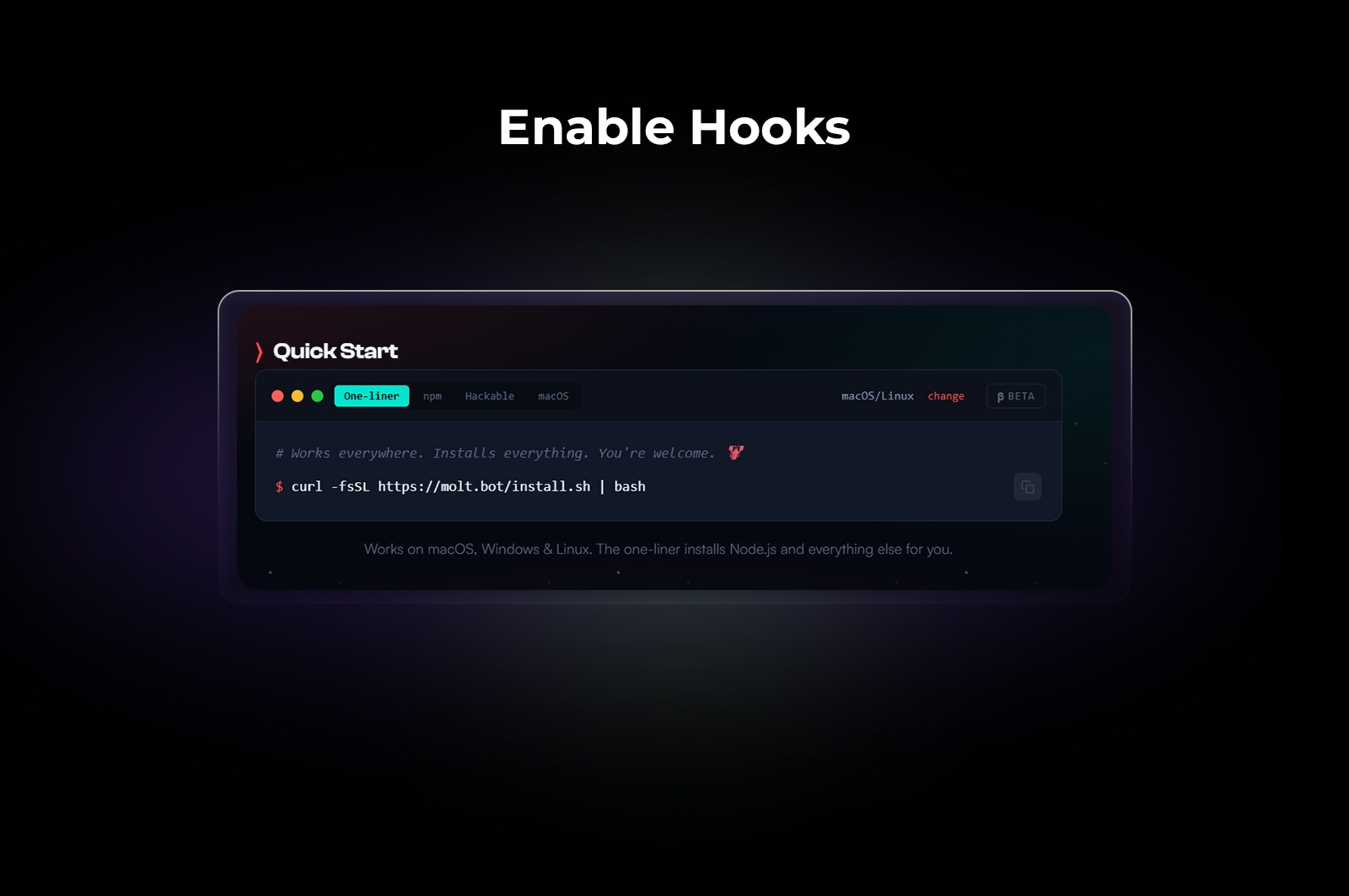
Step 4: Copy the One-Liner Installation Command

Copy the generated command exactly as shown.


Open your terminal (Mac/Linux) or Command Prompt / PowerShell (Windows) and paste the above command.

Press Enter to begin installation.

Step 5: Confirm Installation

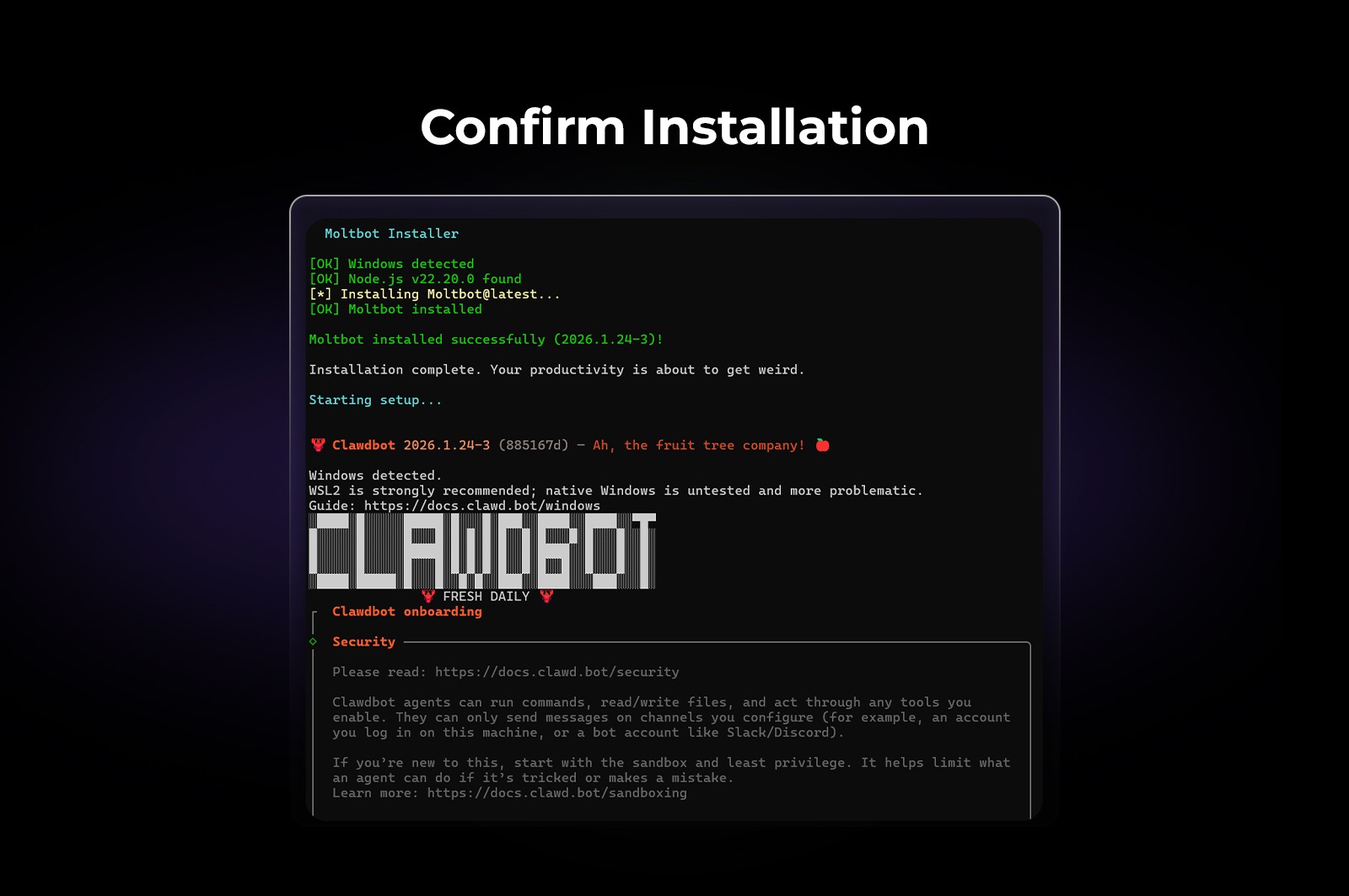
When prompted, confirm that you want to continue with the installation.

ClawdBot will now:

  • Download required files

  • Set up the local environment

  • Prepare onboarding steps


Step 6: Choose the Onboarding Method

You’ll be asked to select an onboarding method.

Choose: Quickstart
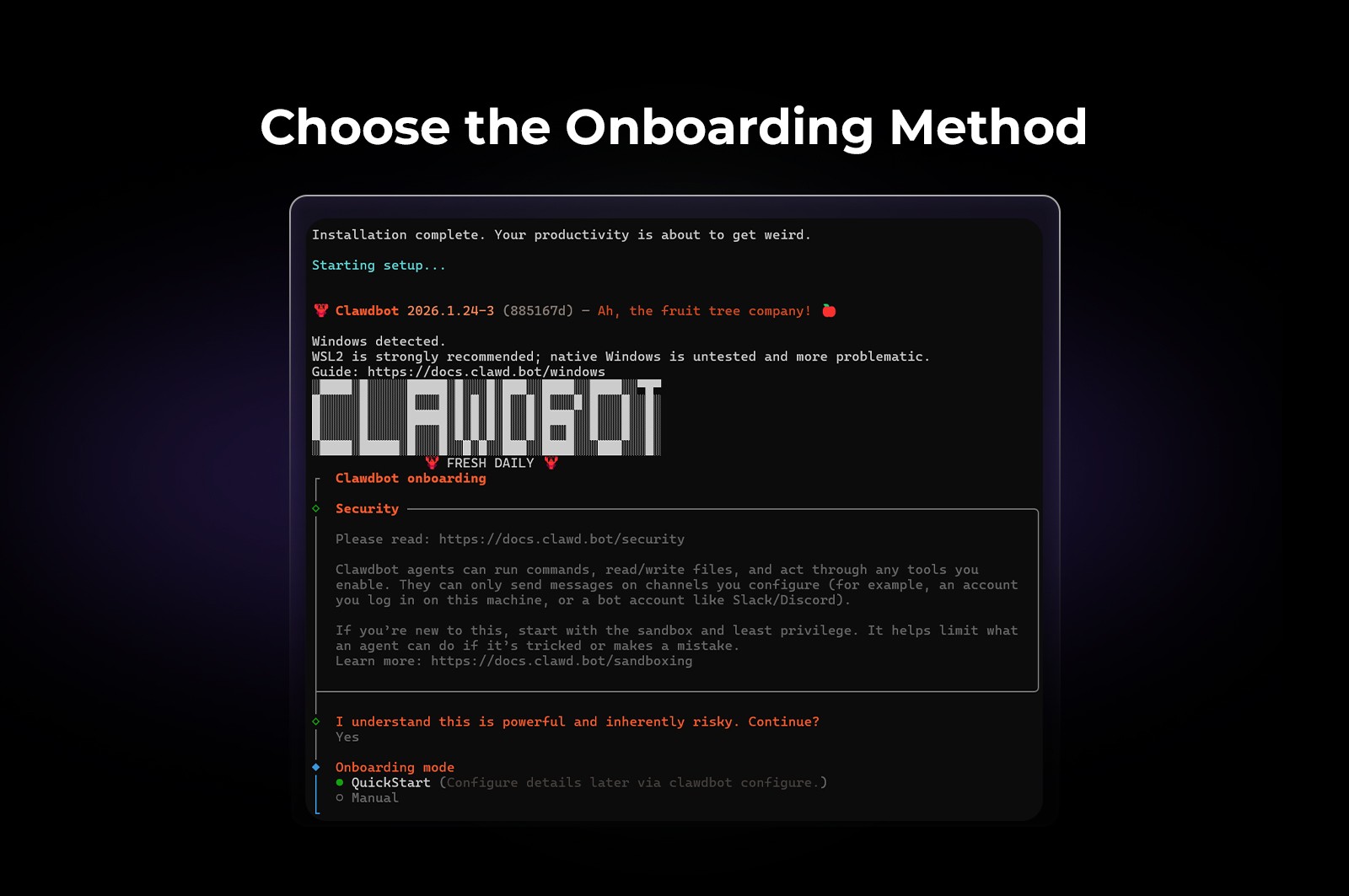

This option skips advanced customization and gets ClawdBot operational as quickly as possible.

Step 7: Select an AI Model Provider

ClawdBot will prompt you to choose an AI provider. Available options typically include:
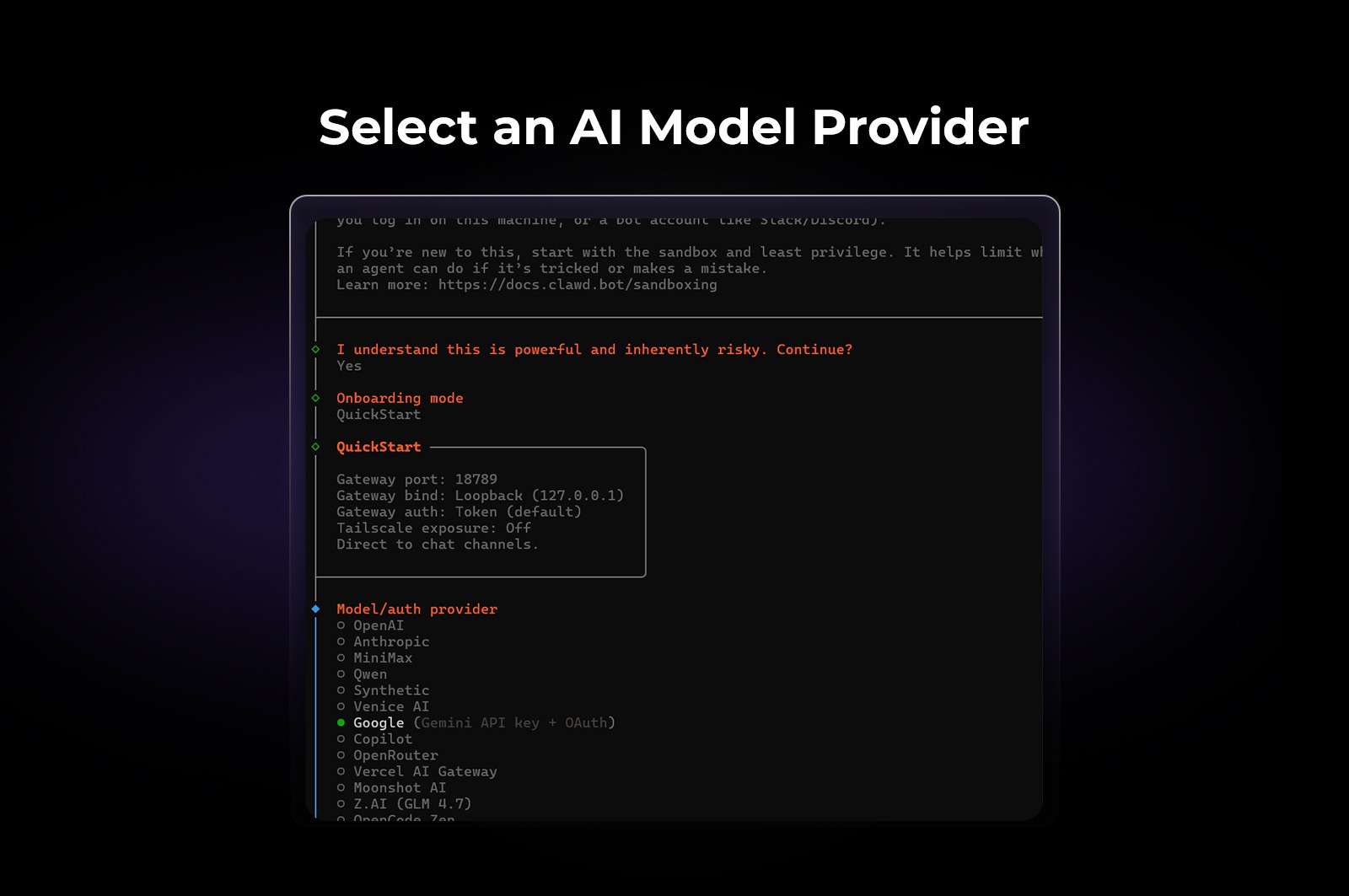

At this stage, you’re only selecting the provider—not the specific model yet.

Step 8: Filter Models by Provider

When prompted to filter models by provider, select:
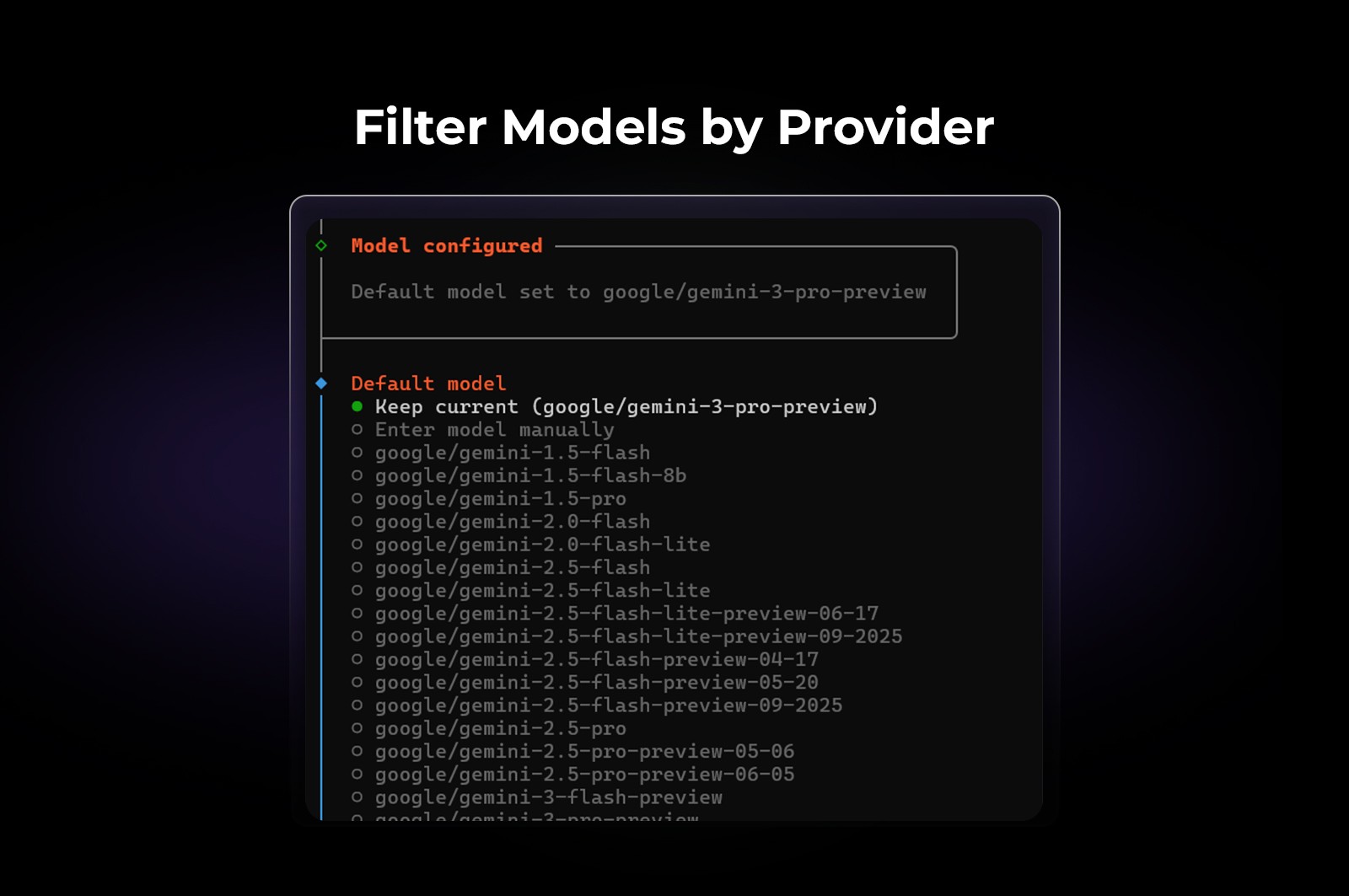

This ensures you can view the full list of available models before choosing a default.

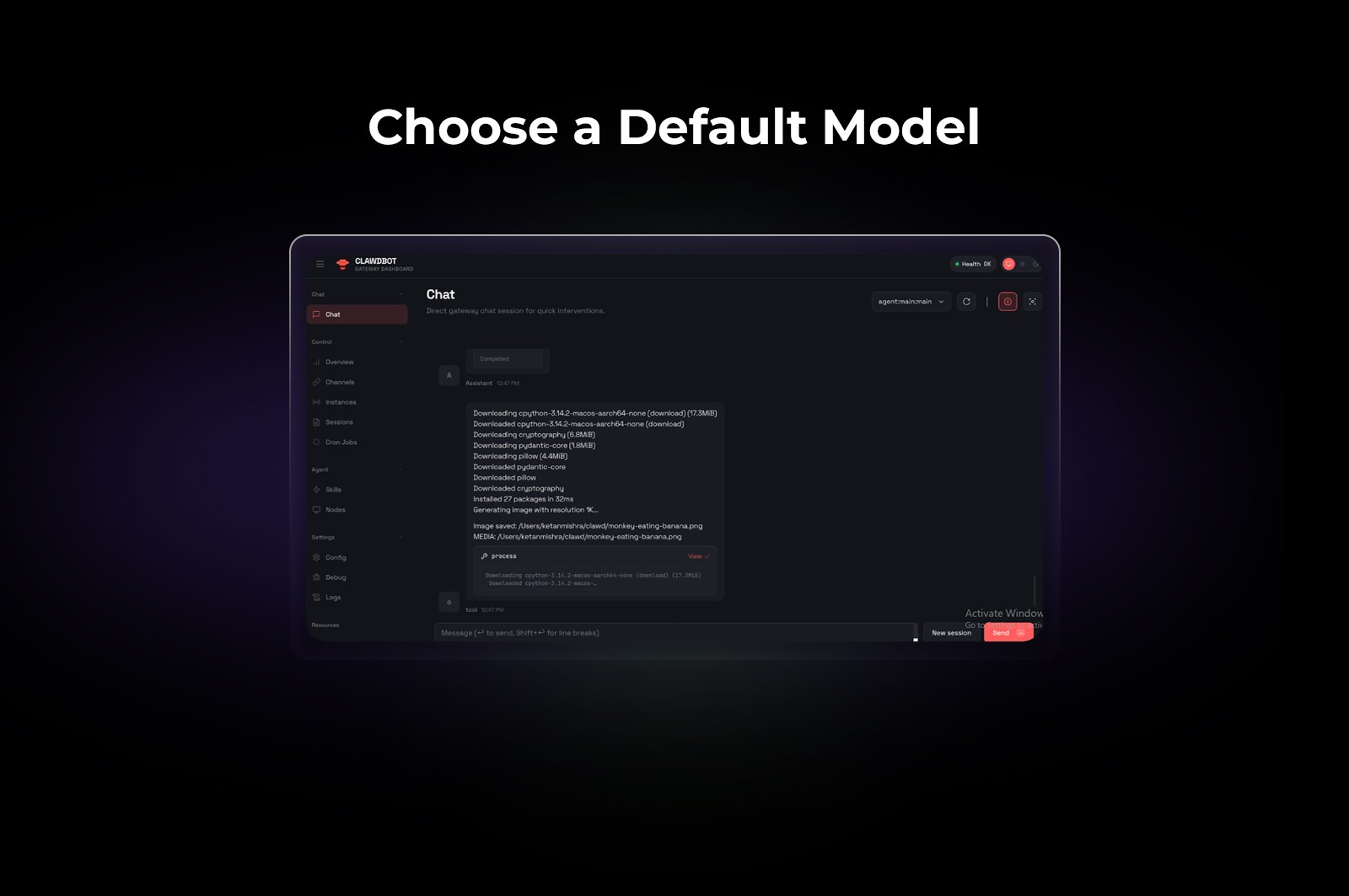
Step 9: Choose a Default Model

Next, ClawdBot will ask you to select a default model.

For this setup, we’ve proceeded with:
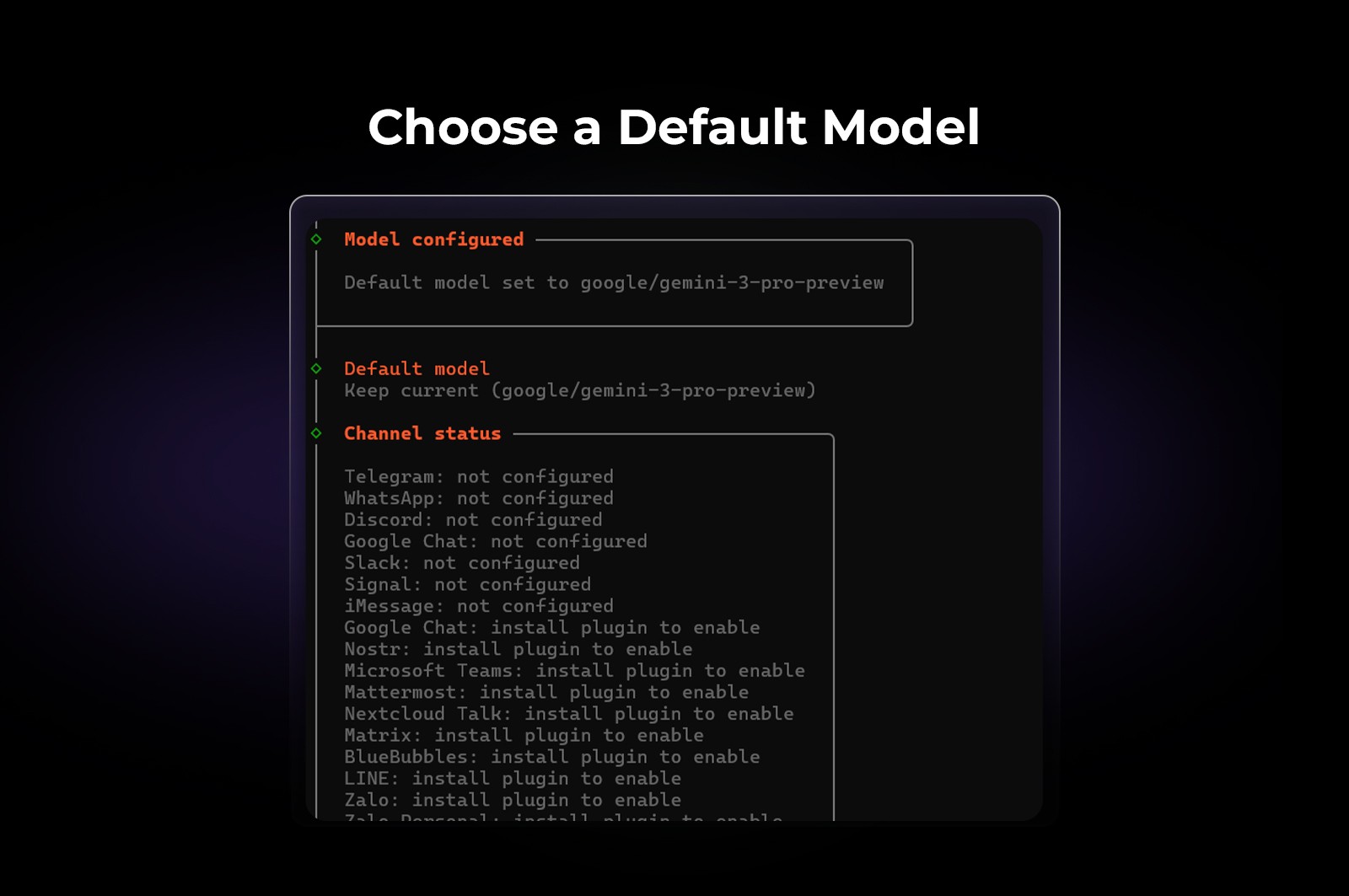

You can always change the default model later as your workflows evolve.

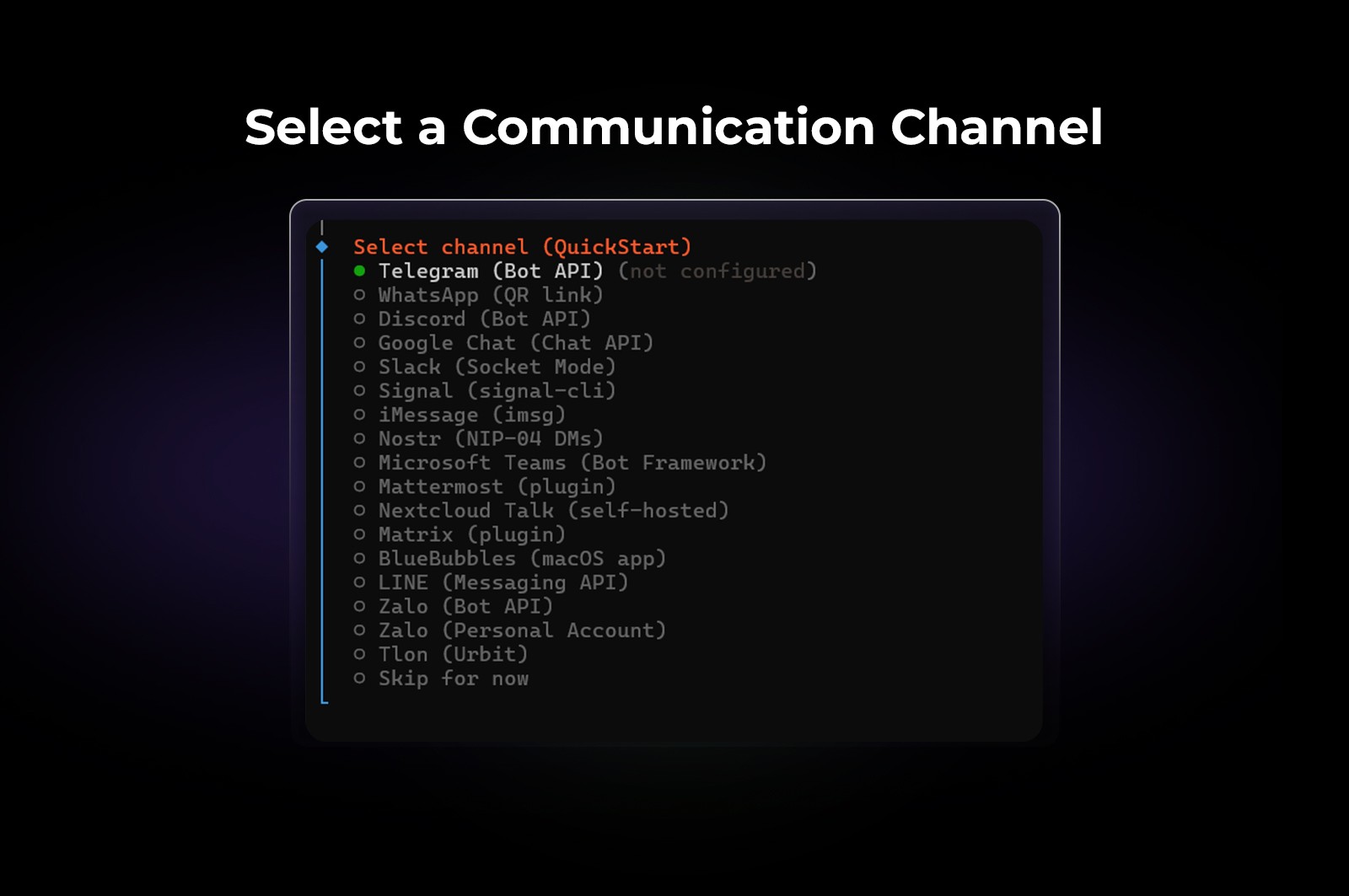
Step 10: Select a Communication Channel

ClawdBot can send outputs—such as reports, logs, or updates—to a connected channel.

Choose the channel where you want ClawdBot to:

  • Send reports

  • Share updates

  • Surface automated outputs


This could be Slack, Discord, or another supported channel depending on your configuration.

Step 11: Configure Skills Installation

You’ll now configure skills, which extend what ClawdBot can do.

  • Select npm (Node Package Manager) as the skills installer

  • You’ll see a list of available skills

  • Choose the skills relevant to your workflows
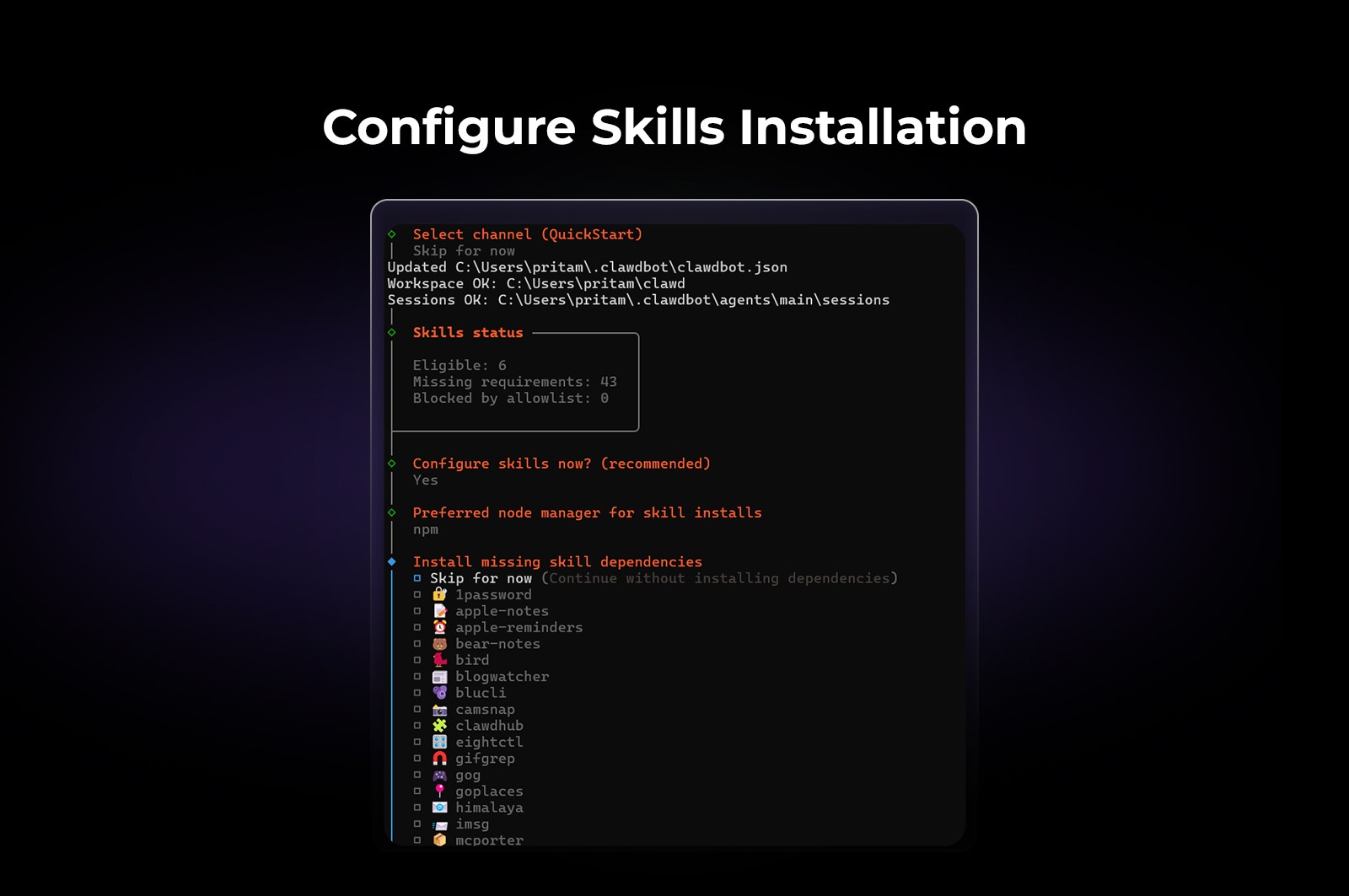

For performance marketers, this is where ClawdBot becomes more than a chatbot—it becomes an operator.

Step 12: Enable Hooks

ClawdBot will ask if you want to enable hooks.

Hooks allow ClawdBot to automate actions when specific agent commands are issued.

Example:

  • Saving session context to memory when you issue /new

  • Triggering actions after specific commands run
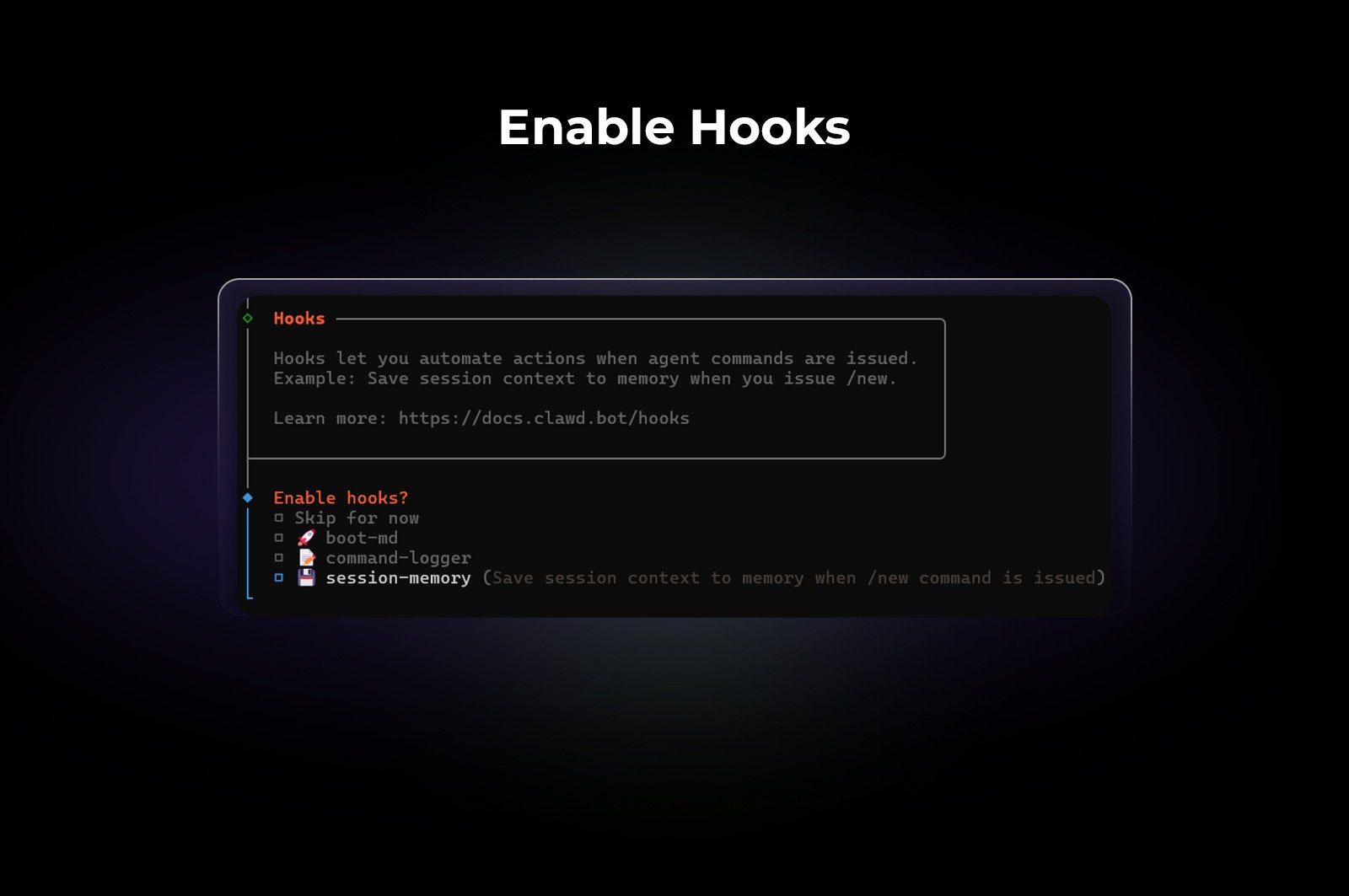


Hooks make ClawdBot more state-aware and automation-friendly.

Here, we’ve moved with enabling Hooks via session-memory

When prompted, select:

session-memory

This installs the default hooks configuration and completes the automation setup.

Step 13:

To open ClawdBot in a browser-based interface, select Web UI option:
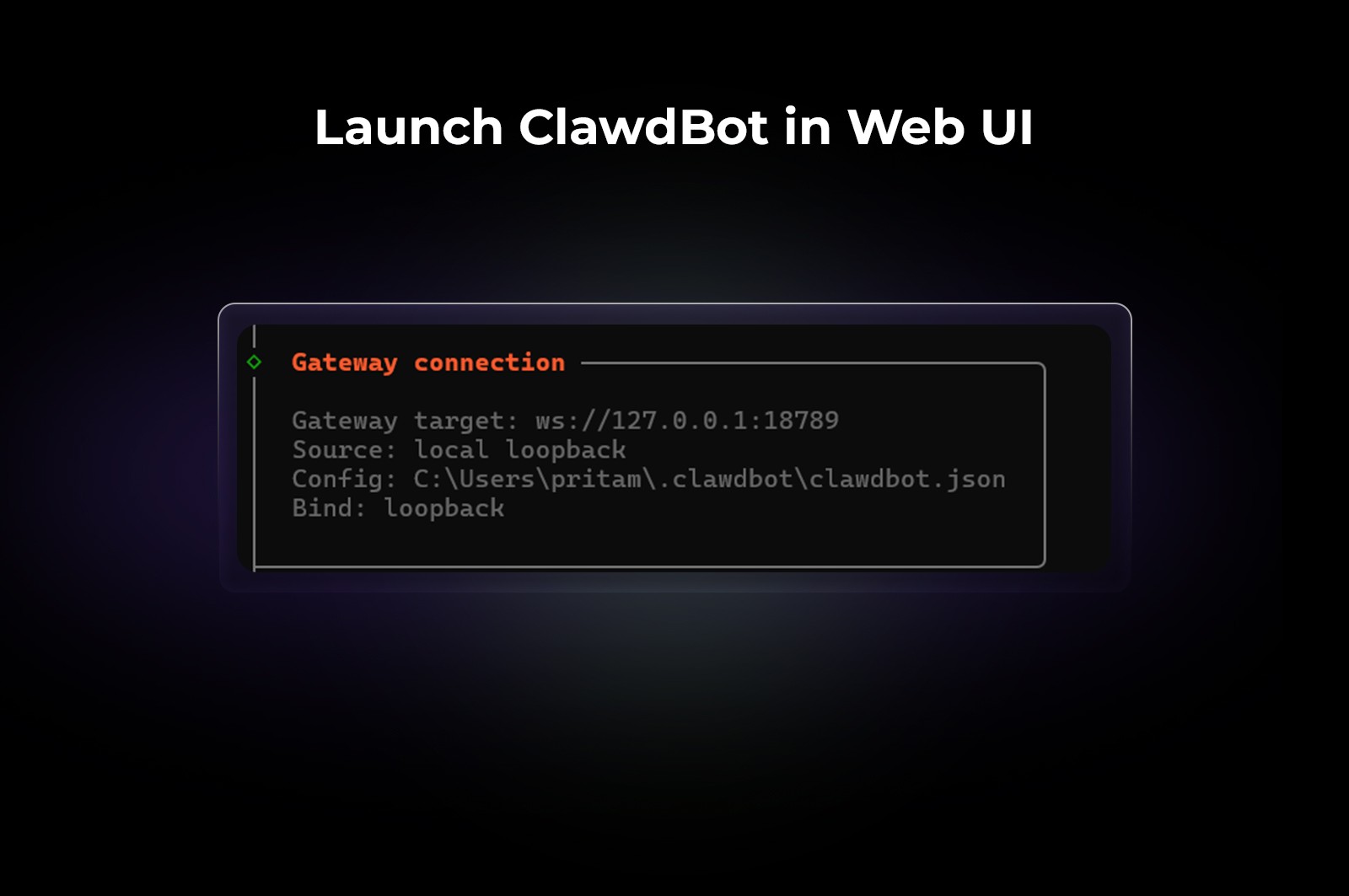

You’ll be redirected to a locally hosted IP address in your browser.

From here, you can:

  • Interact with ClawdBot visually

  • Run commands

  • Monitor sessions

  • Operate ClawdBot without staying inside the terminal

End Notes

ClawdBot is most powerful when treated as an operator, not a novelty.

Once installed, the real value comes from:

  • Pairing the right model with the right tasks

  • Installing skills that map to real workflows

  • Using hooks to reduce repetitive actions

  • Letting the agent handle structure, while you focus on judgment

If you’re a performance marketer experimenting with AI agents, ClawdBot offers a flexible, local-first way to test what automation actually belongs in your workflow—and what doesn’t.

Clarity comes from running systems, not just reading about them.

AI agents are quickly moving from experiments to daily operators. For performance marketers, that shift is especially important: less time configuring tools, more time interpreting outcomes and acting on them.

This guide walks through how to install and set up ClawdBot step by step, using the official one-liner installation. It’s written for operators who want ClawdBot running locally, connected to an AI model, and ready to send reports through a chosen channel—without guesswork.

What Is ClawdBot?

ClawdBot is a locally installed AI agent framework designed to run autonomous or semi-autonomous tasks directly from your machine.

Instead of working as a browser-only chatbot, ClawdBot operates as:

  • A terminal-based AI agent

  • With optional web UI

  • Capable of executing commands, installing skills, running workflows, and sending outputs to external channels

Because it runs locally, ClawdBot gives operators more control over:

  • Model selection (OpenAI, Google, Anthropic, OpenRouter, etc.)

  • Skills and hooks

  • Data flow and automation logic


This makes it particularly useful for performance marketers who want AI agents that can assist with research, reporting, automation, and repeatable operational tasks—without being locked into a single SaaS interface.

How Performance Marketers Can Use ClawdBot

For performance and growth teams, ClawdBot fits into workflows where repeatability and automation matter more than UI polish.

Common use cases include:

  • Generating and summarizing campaign performance reports

  • Automating research tasks across platforms

  • Running structured prompts repeatedly with different inputs

  • Sending insights or alerts to Slack, Discord, or other channels

  • Acting as a lightweight “AI operator” alongside Ads Manager, analytics tools, or internal scripts

The key advantage is flexibility: ClawdBot adapts to how you already work, instead of forcing a new dashboard-first workflow.

How to Install ClawdBot

Below is the official quick-start installation flow, broken down clearly so you can follow it without friction.

Pre-requisites

Before installing ClawdBot, make sure you have:

  • A Mac or Windows machine

  • Access to your system terminal / command prompt

  • Admin privileges (you’ll need your device password)

  • An API key for at least one AI provider (e.g. OpenAI, Google, Anthropic)

  • A basic familiarity with command-line prompts (no advanced knowledge required)

Step-by-Step ClawdBot Installation Guide

Step 1: Visit the Official ClawdBot Website

Go to: https://clawd.bot/

This is the official source for installation instructions and updates.

Step 2: Open the Quick Start Section

On the homepage, navigate to the Quick Start section.

Here, you’ll find multiple installation options.
Select the one-liner installation method.

This is the fastest and most reliable way to get started.

Step 3: Select Your Operating System

Choose your operating system:

  • macOS

  • Windows

  • Linux (if applicable)


ClawdBot will automatically display the correct one-liner command for your system.

Step 4: Copy the One-Liner Installation Command

Copy the generated command exactly as shown.


Open your terminal (Mac/Linux) or Command Prompt / PowerShell (Windows) and paste the above command.

Press Enter to begin installation.

Step 5: Confirm Installation

When prompted, confirm that you want to continue with the installation.

ClawdBot will now:

  • Download required files

  • Set up the local environment

  • Prepare onboarding steps


Step 6: Choose the Onboarding Method

You’ll be asked to select an onboarding method.

Choose: Quickstart


This option skips advanced customization and gets ClawdBot operational as quickly as possible.

Step 7: Select an AI Model Provider

ClawdBot will prompt you to choose an AI provider. Available options typically include:


At this stage, you’re only selecting the provider—not the specific model yet.

Step 8: Filter Models by Provider

When prompted to filter models by provider, select:


This ensures you can view the full list of available models before choosing a default.

Step 9: Choose a Default Model

Next, ClawdBot will ask you to select a default model.

For this setup, we’ve proceeded with:


You can always change the default model later as your workflows evolve.

Step 10: Select a Communication Channel

ClawdBot can send outputs—such as reports, logs, or updates—to a connected channel.

Choose the channel where you want ClawdBot to:

  • Send reports

  • Share updates

  • Surface automated outputs


This could be Slack, Discord, or another supported channel depending on your configuration.

Step 11: Configure Skills Installation

You’ll now configure skills, which extend what ClawdBot can do.

  • Select npm (Node Package Manager) as the skills installer

  • You’ll see a list of available skills

  • Choose the skills relevant to your workflows


For performance marketers, this is where ClawdBot becomes more than a chatbot—it becomes an operator.

Step 12: Enable Hooks

ClawdBot will ask if you want to enable hooks.

Hooks allow ClawdBot to automate actions when specific agent commands are issued.

Example:

  • Saving session context to memory when you issue /new

  • Triggering actions after specific commands run


Hooks make ClawdBot more state-aware and automation-friendly.

Here, we’ve moved with enabling Hooks via session-memory

When prompted, select:

session-memory

This installs the default hooks configuration and completes the automation setup.

Step 13:

To open ClawdBot in a browser-based interface, select Web UI option:


You’ll be redirected to a locally hosted IP address in your browser.

From here, you can:

  • Interact with ClawdBot visually

  • Run commands

  • Monitor sessions

  • Operate ClawdBot without staying inside the terminal


End Notes

ClawdBot is most powerful when treated as an operator, not a novelty.

Once installed, the real value comes from:

  • Pairing the right model with the right tasks

  • Installing skills that map to real workflows

  • Using hooks to reduce repetitive actions

  • Letting the agent handle structure, while you focus on judgment

If you’re a performance marketer experimenting with AI agents, ClawdBot offers a flexible, local-first way to test what automation actually belongs in your workflow—and what doesn’t.

Clarity comes from running systems, not just reading about them.

AI agents are quickly moving from experiments to daily operators. For performance marketers, that shift is especially important: less time configuring tools, more time interpreting outcomes and acting on them.

This guide walks through how to install and set up ClawdBot step by step, using the official one-liner installation. It’s written for operators who want ClawdBot running locally, connected to an AI model, and ready to send reports through a chosen channel—without guesswork.

What Is ClawdBot?

ClawdBot is a locally installed AI agent framework designed to run autonomous or semi-autonomous tasks directly from your machine.

Instead of working as a browser-only chatbot, ClawdBot operates as:

  • A terminal-based AI agent

  • With optional web UI

  • Capable of executing commands, installing skills, running workflows, and sending outputs to external channels

Because it runs locally, ClawdBot gives operators more control over:

  • Model selection (OpenAI, Google, Anthropic, OpenRouter, etc.)

  • Skills and hooks

  • Data flow and automation logic


This makes it particularly useful for performance marketers who want AI agents that can assist with research, reporting, automation, and repeatable operational tasks—without being locked into a single SaaS interface.

How Performance Marketers Can Use ClawdBot

For performance and growth teams, ClawdBot fits into workflows where repeatability and automation matter more than UI polish.

Common use cases include:

  • Generating and summarizing campaign performance reports

  • Automating research tasks across platforms

  • Running structured prompts repeatedly with different inputs

  • Sending insights or alerts to Slack, Discord, or other channels

  • Acting as a lightweight “AI operator” alongside Ads Manager, analytics tools, or internal scripts

The key advantage is flexibility: ClawdBot adapts to how you already work, instead of forcing a new dashboard-first workflow.

How to Install ClawdBot

Below is the official quick-start installation flow, broken down clearly so you can follow it without friction.

Pre-requisites

Before installing ClawdBot, make sure you have:

  • A Mac or Windows machine

  • Access to your system terminal / command prompt

  • Admin privileges (you’ll need your device password)

  • An API key for at least one AI provider (e.g. OpenAI, Google, Anthropic)

  • A basic familiarity with command-line prompts (no advanced knowledge required)

Step-by-Step ClawdBot Installation Guide

Step 1: Visit the Official ClawdBot Website

Go to: https://clawd.bot/

This is the official source for installation instructions and updates.

Step 2: Open the Quick Start Section

On the homepage, navigate to the Quick Start section.

Here, you’ll find multiple installation options.
Select the one-liner installation method.

This is the fastest and most reliable way to get started.

Step 3: Select Your Operating System

Choose your operating system:

  • macOS

  • Windows

  • Linux (if applicable)


ClawdBot will automatically display the correct one-liner command for your system.

Step 4: Copy the One-Liner Installation Command

Copy the generated command exactly as shown.


Open your terminal (Mac/Linux) or Command Prompt / PowerShell (Windows) and paste the above command.

Press Enter to begin installation.

Step 5: Confirm Installation

When prompted, confirm that you want to continue with the installation.

ClawdBot will now:

  • Download required files

  • Set up the local environment

  • Prepare onboarding steps


Step 6: Choose the Onboarding Method

You’ll be asked to select an onboarding method.

Choose: Quickstart


This option skips advanced customization and gets ClawdBot operational as quickly as possible.

Step 7: Select an AI Model Provider

ClawdBot will prompt you to choose an AI provider. Available options typically include:


At this stage, you’re only selecting the provider—not the specific model yet.

Step 8: Filter Models by Provider

When prompted to filter models by provider, select:


This ensures you can view the full list of available models before choosing a default.

Step 9: Choose a Default Model

Next, ClawdBot will ask you to select a default model.

For this setup, we’ve proceeded with:


You can always change the default model later as your workflows evolve.

Step 10: Select a Communication Channel

ClawdBot can send outputs—such as reports, logs, or updates—to a connected channel.

Choose the channel where you want ClawdBot to:

  • Send reports

  • Share updates

  • Surface automated outputs


This could be Slack, Discord, or another supported channel depending on your configuration.

Step 11: Configure Skills Installation

You’ll now configure skills, which extend what ClawdBot can do.

  • Select npm (Node Package Manager) as the skills installer

  • You’ll see a list of available skills

  • Choose the skills relevant to your workflows


For performance marketers, this is where ClawdBot becomes more than a chatbot—it becomes an operator.

Step 12: Enable Hooks

ClawdBot will ask if you want to enable hooks.

Hooks allow ClawdBot to automate actions when specific agent commands are issued.

Example:

  • Saving session context to memory when you issue /new

  • Triggering actions after specific commands run


Hooks make ClawdBot more state-aware and automation-friendly.

Here, we’ve moved with enabling Hooks via session-memory

When prompted, select:

session-memory

This installs the default hooks configuration and completes the automation setup.

Step 13:

To open ClawdBot in a browser-based interface, select Web UI option:


You’ll be redirected to a locally hosted IP address in your browser.

From here, you can:

  • Interact with ClawdBot visually

  • Run commands

  • Monitor sessions

  • Operate ClawdBot without staying inside the terminal


End Notes

ClawdBot is most powerful when treated as an operator, not a novelty.

Once installed, the real value comes from:

  • Pairing the right model with the right tasks

  • Installing skills that map to real workflows

  • Using hooks to reduce repetitive actions

  • Letting the agent handle structure, while you focus on judgment

If you’re a performance marketer experimenting with AI agents, ClawdBot offers a flexible, local-first way to test what automation actually belongs in your workflow—and what doesn’t.

Clarity comes from running systems, not just reading about them.

Visioned and Crafted by Vibelets.ai

2026 © All right reserved.

Visioned and Crafted by Vibelets.ai

2026 © All right reserved.